Add a New Routing Rule
To segregate food transactions from all other transactions, the user must create a routing rule that routes the food transactions to their own folio. Routing rules define requirements that, when met, cause a transaction to be routed to a specified folio. Follow the below set of instructions to create a new routing rule.
Click the More button at the right-corner of the screen.
Select Add a Routing Rule from the list of options. The Add a Routing Rule pop-up will appear.
Go through the below table and fill in the appropriate fields.
|
Field |
Description |
|---|---|
|
Rule Name |
Name of the new rule. |
|
Start Date |
The active start date for the rule. |
|
End Date |
The end date for the rule. |
|
Source |
The source for which the rule should apply. |
|
Categories |
The list of categories for which the rule must apply. |
|
Items |
The list of items for which the rule must apply. |
|
Destination |
The destination folio for the select category transactions. |
|
Reason |
Reason for creating the routing rule. |
Click Save to add the new routing rule.

Display Progress Indicator When Routing Charges/Deposits
Stay displays a progress indicator when charges and deposits are routed by selecting the Run Rule for Charges and Deposits Already Posted option in the routing rule template.
The pop-up screen, Routing in Progress, is displayed when users save a routing rule with the Run Rule for Charges and Deposits Already Posted option selected for a reservation or group. This screen displays the progress indicator that lists the charges/deposits transferred versus the total. For example, if 2 charges or deposits were transferred out of 5 items, the progress indicator displays the following message: 2/5 charges or deposits routed.
When users click the Close button, the following message is displayed as a banner at the top of the screen: Routing is in progress. Click here for details. When users click the Click here hyperlink, the Routing in Progress screen appears that displays the progress of the transfer.
When the routing is completed successfully, the progress indicator is closed automatically, and the following message is displayed at the top of the reservation: Routing completed successfully. The progress indicator is displayed even when only taxes are routed. The system routes the appropriate quantity and charges of the selected items to the destination.
When any of the selected items are not routed successfully, the following message is displayed either on the Routing in Progress screen or as a banner at the top of the screen: System error has occurred. Click here for details. When users click the Click here hyperlink, the Routing Charges pop-up screen appears that displays the list of failed items.
When users enter the name of a closed folio as the destination to route the already posted charges/deposits, the closed folios are indicated using a lock icon. Users are then prompted to enter their credentials and override the closed folio to save the routing rule to the account.
Send Bill Code Information to ACSC
Stay sends the bill code configured as part of a comp routing rule added to a reservation when integrated with ACSC (Advanced Casino System Corporation).
Contact Agilysys to enable this feature for a property.
Users can configure the bill code in the Bill Code field displayed in the Step 1: Rule Details section of the Add Routing Rule pop-up screen (Reservation ➜ Folios section ➜ Summary tab ➜ + Add account routing rule) that appears when users add a comp routing rule to a reservation. This field is displayed only when the ACSC interface is enabled for the property. This field accepts only alphabets and numeric values.
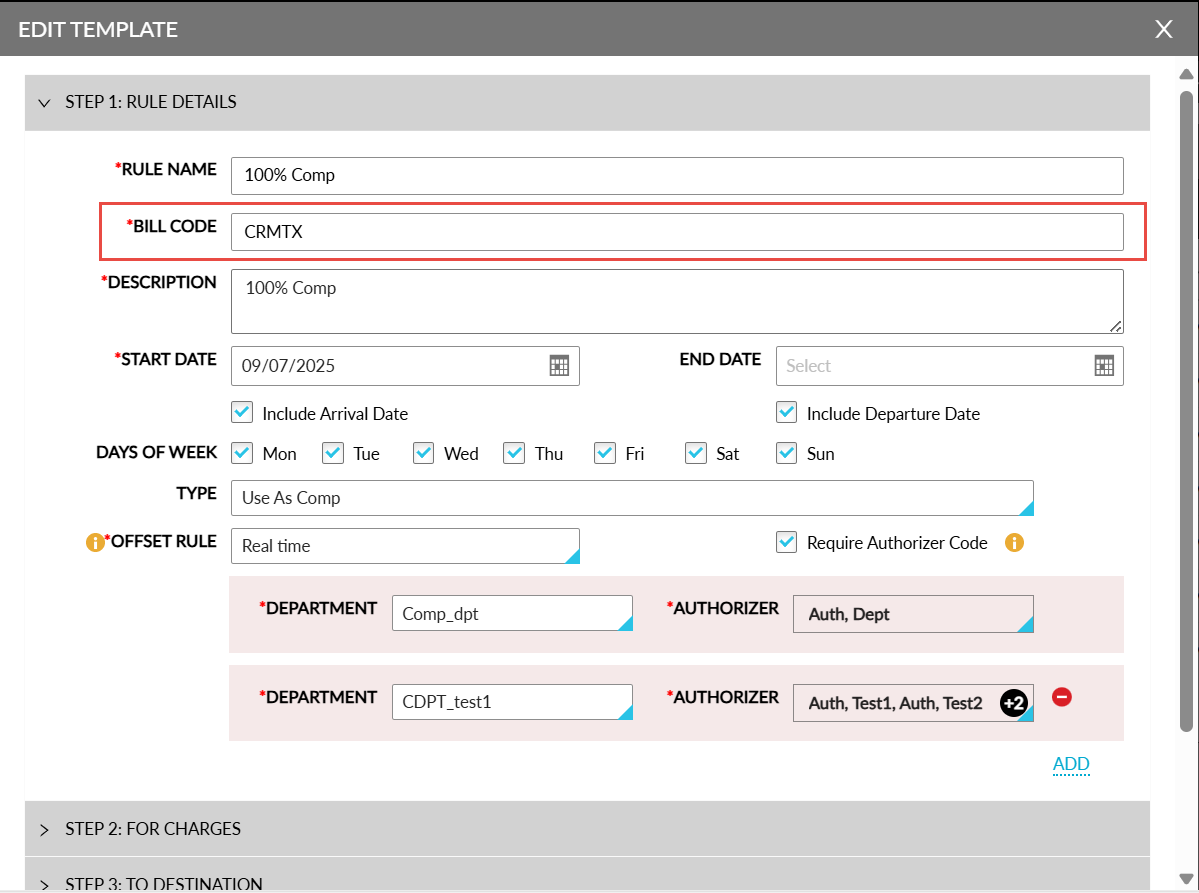
When a comp routing rule configured with a bill code is added to a reservation booked for a casino patron, the following actions are performed:
-
The Issue Player Comp message is sent from Stay along with the details of the routing rule added to the reservation which includes the bill code are sent from Stay to ACSC.
-
ACSC will pre-authorize the estimated comp amount, and a reference comp number is sent as a response from ACSC to Stay.
-
The routing rule will be successfully added to the reservation in Stay based on the response received from ACSC. The comp number received from ACSC will be used for further transactions between Stay and ACSC.
-
When the routing rule added is invalid as per the response received from ACSC, a message indicating the same is displayed in the reservation.
Settle Player Comp
The charges posted to Comp Folio as part of the routing rule will be sent to ACSC during the date roll. For example, for a 4-nights reservation, the Settle Player Comp message will be sent from Stay during the date roll to inform ACSC regarding the amount available in the Comp folio for every four nights.
ACSC will validate the comp amount and send a response to Stay. Stay displays the success and failure message received from ACSC as part of the API log. The date roll will be completed and not blocked in case any failure message is received from ACSC.
Reservation Check-Out
The charges available in the Comp Folio at the time of check-out will be sent from Stay to ACSC. ACSC will validate the amount received and send a response back to Stay. The success message received from ACSC will be displayed in the API logs.
When no charges are available in the Comp Folio at the time of check-out, the Settle Player Comp call will be triggered by Stay with the amount as $0.00.
Remove Routing Rule
When a routing rule is manually removed from a reservation, a Void Issue Player Comp message is sent from Stay to ACSC. ACSC provides a valid response to Stay to remove the routing rule associated with the reservation. When the duration of the reservation is extended or shortened, the Settle Player Comp message is sent from Stay for the valid days when comp is available as part of the routing rule.
Undo Check-Out
After a reservation is checked out, the routing rule associated with the reservation will be marked as closed by ACSC. When an undo check-out is performed, the existing rule will continue to be used to route the charges posted thereafter.